How to Manage Pardot User Access in Salesforce
How Pardot user access works in Salesforce: licenses, permission sets, the Lightning app, User Sync, roles and business unit assignments.

This guide explains how to manage user access to Account Engagement (Pardot) effectively and securely within Salesforce. Since Pardot was fully integrated into the Salesforce platform, access has become more complex.
Whether you’re onboarding new team members or setting up roles for an existing marketing team, you need to know how permissions, licenses and business unit assignments interact.
- Since Spring ’21, every user logs in through Salesforce, with a standard Salesforce license or an identity license.
- Users need permission sets to open the Account Engagement Lightning app.
- If the app is missing, check App Menu visibility and profile access in App Manager.
- Salesforce User Sync can’t be turned off once enabled; it maps Salesforce profiles to Pardot roles.
- Assign users to each business unit, and limit imports, exports and email sends per user where needed.
Salesforce Users vs. Pardot Users: Start with the Right License
Since the Spring ’21 release, Pardot-only login credentials are no longer supported. Every user must now authenticate via Salesforce, which fundamentally changes how access is granted.
Two Paths to Access Pardot
- Standard Salesforce License: Suitable for users who actively use Salesforce beyond Pardot.
- Salesforce Identity License: For users who only need access to Account Engagement. Salesforce provides 100 free identity licenses for orgs with qualifying editions.
This shift centralizes user authentication but requires admins to rethink how to provision access efficiently.
Permission Sets: What You Need to Assign
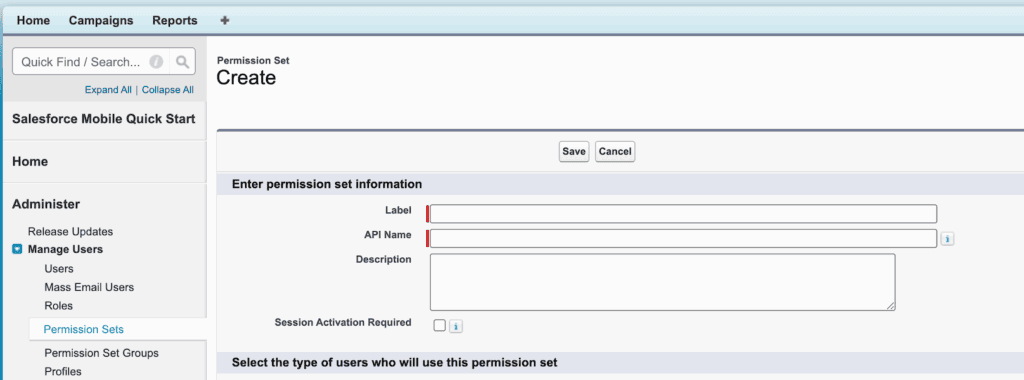
To access the Account Engagement Lightning App, every user needs certain permission sets attached to their Salesforce user record.
Out-of-the-Box Permission Sets
- Sales Cloud User
- CRM User
- Service Cloud User
- Account Engagement User (designed for identity-licensed users)
You can also create custom permission sets to allow more granular control. But beware – custom sets won’t automatically receive new permissions introduced in future Salesforce releases.
Additional Permissions to Consider
For users to carry out advanced marketing functions, they may need access to:
- Drag and Drop Content Builder
- Activate Email for Automation
- Manage Email Content
- Salesforce CMS and related permissions
Admin Setup Permissions
Pardot admins also require:
- View Setup and Configuration
- Manage Marketing Setup Tasks
- Manage Profiles and Permission Sets
- Assign Permission Sets
Connected Apps: Don’t Forget B2BMA Canvas
Users must also be granted access to the B2BMA Canvas connected app via:
- Setup > Manage Connected Apps
- Select b2bma_canvas
- Manage access via Profiles or Permission Sets
Making the Account Engagement Lightning App Visible
Even after all permissions are set, users might not see the Account Engagement App in their App Launcher. Here’s what to check:
- Go to Setup > App Menu and confirm the app is marked “Visible in App Launcher.”
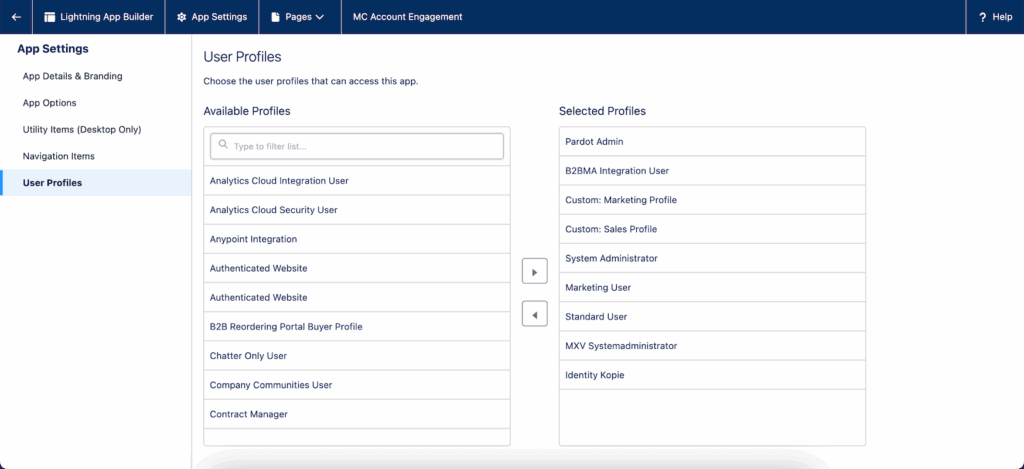
- If still hidden, go to Setup > App Manager, find the Lightning App, and edit profile access under the “User Profiles” tab.
Enabling Salesforce User Sync
User Sync allows you to manage Account Engagement user access directly from Salesforce profiles. It also makes Pardot user records read-only and reliant on Salesforce data.
Before You Enable It
It’s a one-way switch – once turned on, User Sync can’t be disabled. Always review the User Sync Enablement Guide before proceeding. Setup steps may differ based on whether your business unit is using a legacy or upgraded configuration.
Mapping Salesforce Profiles to Pardot Roles
Once User Sync is enabled, assigning users to roles in Account Engagement is handled by mapping Salesforce profiles to Pardot roles. These define the feature access level inside the platform.
The Four Standard Roles
| Role | Description |
|---|---|
| Administrator | Full access to all settings and data |
| Marketing | Access to most campaign and automation features |
| Sales Manager | Views and manages assigned prospects and reports |
| Sales | Basic access to leads and prospect activities |
If default roles don’t suit your org’s needs, you can create custom roles – this is possible only on Advanced or Plus editions (with an additional add-on).
You can even clone an existing role and tweak permissions for specific use cases, such as limiting access to automation rules for certain marketers.
Assigning Users to the Right Business Unit
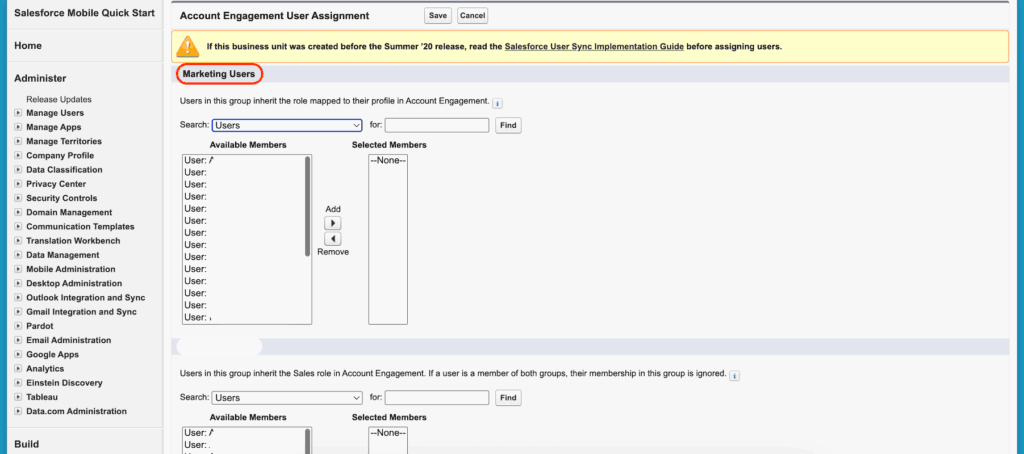
Each Account Engagement instance (business unit) must have users explicitly assigned to it in order to access it. This step can also override User Sync role mappings.
Assignment Categories
- Marketing Users: Obeys profile-to-role mapping defined in User Sync.
- Sales Users: Always assigned to the lowest role, regardless of mapping, to limit access.
This is especially useful when you want to restrict certain sales reps from accessing automation and campaign features. Assign them as “Sales Users” instead.
Restricting Prospect Import/Export Access
To add another layer of control, you can set limits on email sends, imports, and exports by individual user.
How to Set Prospect Limits
- Go to Account Engagement Settings
- Navigate to User Management > Users
- Click on a user and then Edit
- Scroll to the Security Limits section to configure
This is particularly helpful in highly regulated industries where data access must be tightly monitored.
Final Thoughts
Getting user access right in Account Engagement takes more than assigning a license or ticking a few boxes. You need to know how permission sets, roles and business units interact, and how to use them to manage risk, protect data and speed up adoption across teams.
If you’re unsure how best to structure access for your marketing team, get in touch with our team. We’ll help you design a secure, compliant setup that fits your business goals and can grow with them.
Frequently Asked Questions
Which Permission Set Licence Does an Account Engagement User Need?
One of four: Account Engagement User, Sales Cloud User, Service Cloud User or CRM User. Salesforce's setup guide says users need one of these permission set licences to open the Account Engagement Lightning app. What they can do inside Pardot then depends on the Pardot role their Salesforce profile maps to.
What Changes When You Turn On User Sync?
Salesforce becomes the source of truth for Pardot users. You assign users to Account Engagement in Salesforce, one by one or by public group or role; Pardot creates the user record, keeps it read-only and sends alerts to the Salesforce email address. Unassigning a user moves the Pardot user to the recycle bin, and changes usually arrive within 10 minutes.
What Is the Account Engagement Connector User?
The Salesforce user the connector syncs as. With version 2 of the connector, that is the integration user B2BMA Integration, which Salesforce creates for you: it needs no standard Salesforce licence, has no password and can't log in, and changes made by the connector carry its name. Setups with a named connector user give the Account Engagement Connector User permission set to that user only.
For Marketing Cloud Next, Salesforce's setup guide assigns that permission set to B2BMA Integration. The other connector settings are in our article on integrating Pardot and Salesforce.