Pardot Cookies and First-Party Tracking: The GDPR Setup Guide
How to set up tracker domains, consent, first-party tracking, cookie duration and the tracking code in Account Engagement (Pardot), and how to test it.

Visitor tracking in Account Engagement (Pardot) depends on four settings that build on each other: tracker domains, tracking opt-in, first-party cookies and the tracking code. Set them in the wrong order and you either track nobody or set cookies before anyone agreed.
This guide goes through the setup in the order that works, based on Salesforce's documentation as of October 2026. For each step you see what the setting does, where it sits, how your consent banner fits in and how to test the result. It explains the options and their effects. Whether a setup meets GDPR for your company is a judgement for your data protection officer. Email consent follows separate rules, and for Marketing Cloud Next we cover them in how consent works in Marketing Cloud Next.
- Order matters: tracker domains first, then consent settings, first-party tracking and cookie duration, and the tracking code last.
- Whether Pardot sets cookies before consent depends on your Tracking Opt-In Preferences. Ask your data protection officer which setup fits.
- Our recommendation: use a consent management platform such as Cookiebot and connect it to Pardot through the Tracking & Consent API with pdt('setOptIn', ...).
- First-party tracking and a 365-day cookie duration are today's defaults. Older business units should check both (180 to 3,650 days are possible).
- Place the tracking code on high-value pages only, then test in a private window and in the Visitors report.
The Setup Order at a Glance
If you only need the sequence, here it is. All of them are covered below.
- Decide which websites you track and pick one tracker subdomain per root domain, for example go.brandA.com for brandA.com.
- Create one Salesforce campaign per tracker domain to serve as its default campaign.
- Add the tracker domains in Pardot, ask IT for the DNS records and validate them.
- Choose how visitors give consent (Tracking Opt-In Preferences). If you use a consent banner tool, plan the Tracking & Consent API.
- Turn on first-party tracking, plus third-party cookies for the transition if you tracked before.
- Set the maximum cookie duration.
- Copy the tracking code from the Tracking Code Generator and place it on your high-value pages.
- Test in a private browser window and in the Visitors report.
- Add the Pardot cookies to your consent banner tool and your cookie policy.
Business units created after 13 February 2023 start with first-party tracking and tracking opt-in switched on. If yours is older, check both settings, because they may still be on the old defaults.
Step 1: Set Up Tracker Domains
A tracker domain is a subdomain of your website that Pardot uses for its tracking code, landing pages, files and link tracking. First-party tracking needs one, so this comes first.
Before You Start
- You can only track websites where you or your IT team can change both the pages and the DNS records.
- Each root domain gets its own tracker domain, and it must be a subdomain of that root domain. brandA.com itself can't be a tracker domain.
- The subdomain must not be in use for anything else.
- Within one campaign, use one tracker domain, or several subdomains of the same root domain (go1.brandA.com and go2.brandA.com).
- You need the Account Engagement Administrator role for the setup.
The tracker domain has to match the root domain of the site it tracks:
| Website | Tracker domain | Match |
|---|---|---|
| brandA.com | go.brandA.com | Yes |
| brandB.com | example.brandB.com | Yes |
| brandC.com | go.brandXYZ.com | No |
Common prefixes are go., info., www2., content. and event. Before you continue, write down which domains you want to track, on which domains Pardot should host landing pages and files, and what the subdomains will be called.
Create a Default Campaign per Tracker Domain
You choose a default campaign when you add a tracker domain, and first-party tracking requires one. It is the campaign Pardot credits for visits tracked on that domain unless you override it. We recommend one Salesforce campaign per tracker domain. Salesforce doesn't demand that, but it keeps your reports readable.
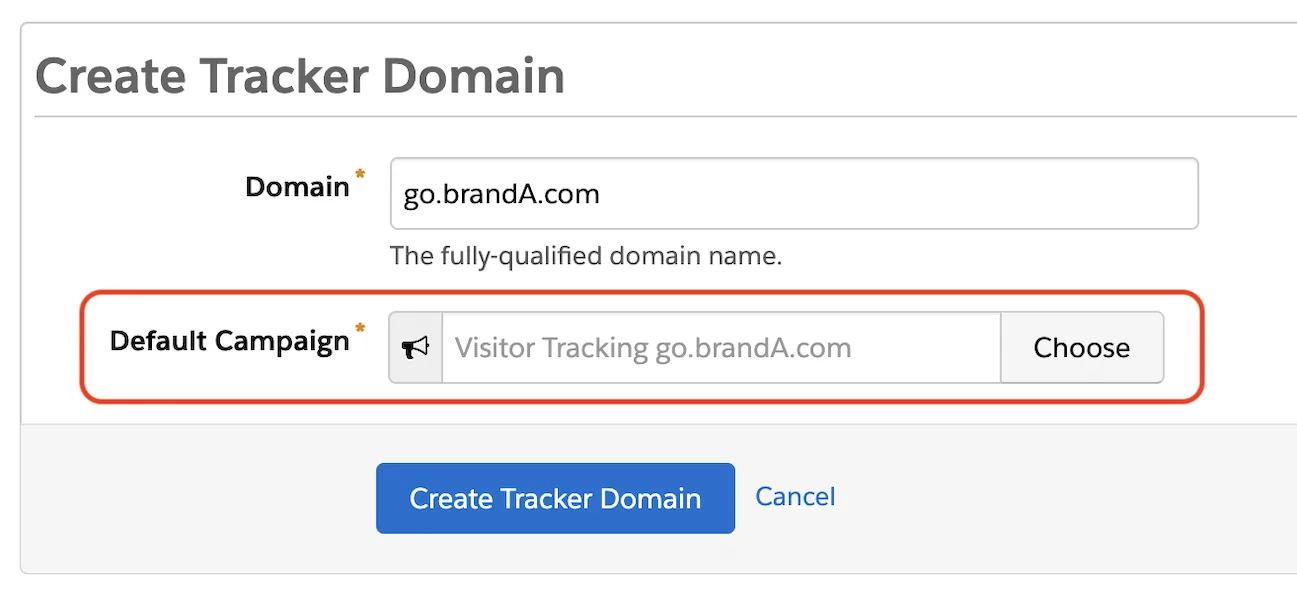
If you use connected campaigns, choose a Salesforce campaign. A name with "Visitor Tracking" and the tracker domain is easy to find later, for example "Visitor Tracking go.brandA.com". If your org uses campaign types, a type such as "Other" works well.

Add the Tracker Domain
In the Lightning app, open Account Engagement Settings → Domain Management (in classic Pardot: Admin → Domain Management). Older orgs label the tab "Pardot Settings", as in the screenshot.
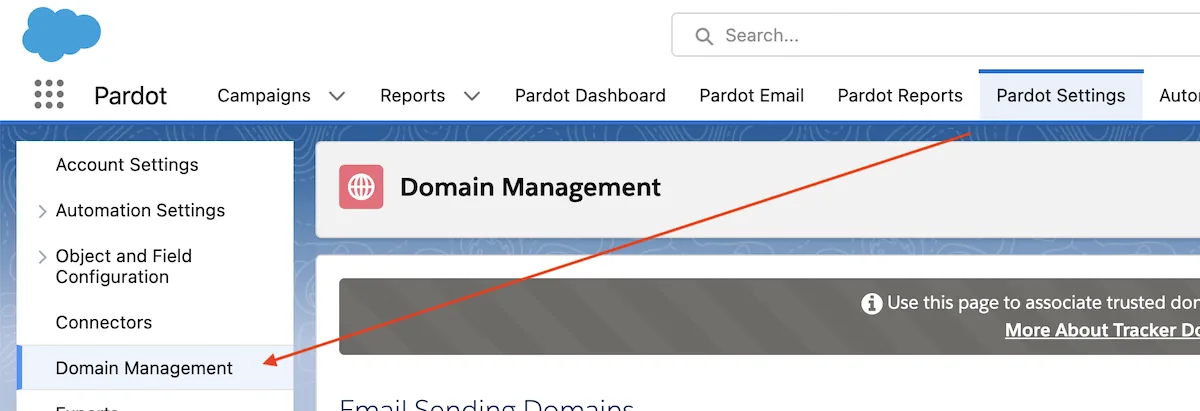
Click Add Tracker Domain, enter the subdomain and choose the default campaign. The form now also has the option "Allow iframed assets on this domain", which controls whether Pardot forms from this domain may be embedded in iframes. Repeat this for every tracker domain.
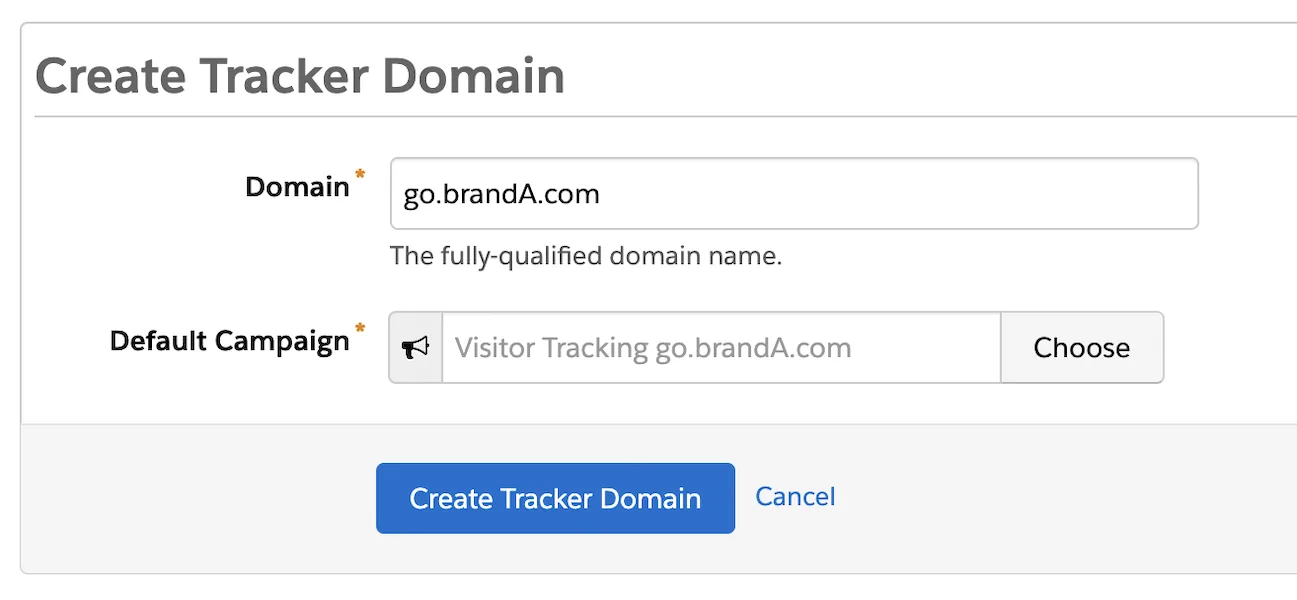
DNS Records and Validation
Pardot only uses a tracker domain once DNS proves that you own it. Each new domain shows a validation key.

Send these two records to whoever manages your DNS. Our tracker domain setup generator turns the values from Pardot into a ready-to-send email for your IT team.
- CNAME for the subdomain (host: go) pointing to go.pardot.com.
- TXT on the root domain (host: @) with the validation key as its value. Each tracker domain has its own key. The Tools button also downloads it as a text file.
DNS changes can take up to 24 hours. Then open the gear icon next to the domain and click Validate (older screens show a "validate" link instead).

If validation fails, check both records with your DNS contact. Our TXT record lookup shows whether the validation key is published.
SSL and HTTPS
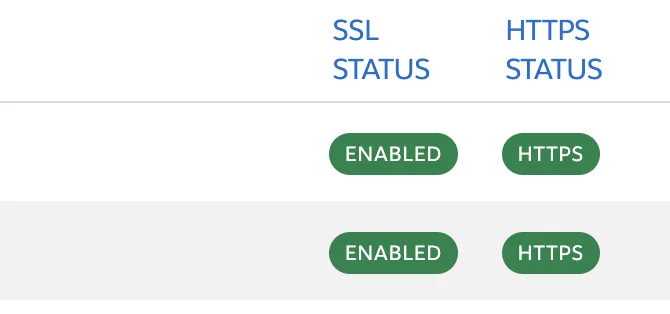
Business units created after 15 February 2021 get an SSL certificate for every tracker domain automatically and use HTTPS by default, so there is nothing to do. In older business units, open the gear icon, click Enable SSL (the certificate is usually ready within about 15 minutes) and then Default HTTPS. Both status columns turn green afterwards.
Use HTTPS links only. If the same domain is reached over both HTTP and HTTPS, Pardot attributes visitor activity incorrectly.
Step 2: Decide How Visitors Give Consent
This is the setting with the biggest effect, and the one to settle with your data protection officer before the tracking code goes live. Tracking Opt-In Preferences decide whether visitors have to agree before Pardot tracks them. They apply to every page with the tracking code and to Pardot's own assets: landing pages, forms, form handlers, custom redirects, and the unsubscribe and preference pages.
Whether Pardot sets its visitor cookie before consent depends on this setting. With opt-in requested, the cookie is set only after the visitor agrees. Without opt-in, it is set as soon as the page loads. Salesforce says the cookie holds a unique identifier and no personal details. EU rules on storing information in the browser (in Germany § 25 TDDDG) can require consent either way, so ask your data protection officer before you choose.
One detail matters for reporting. When a visitor hasn't opted in, Pardot records no page views or form views, but email link clicks and form submissions still show up in the prospect's activities.
Where the Setting Lives
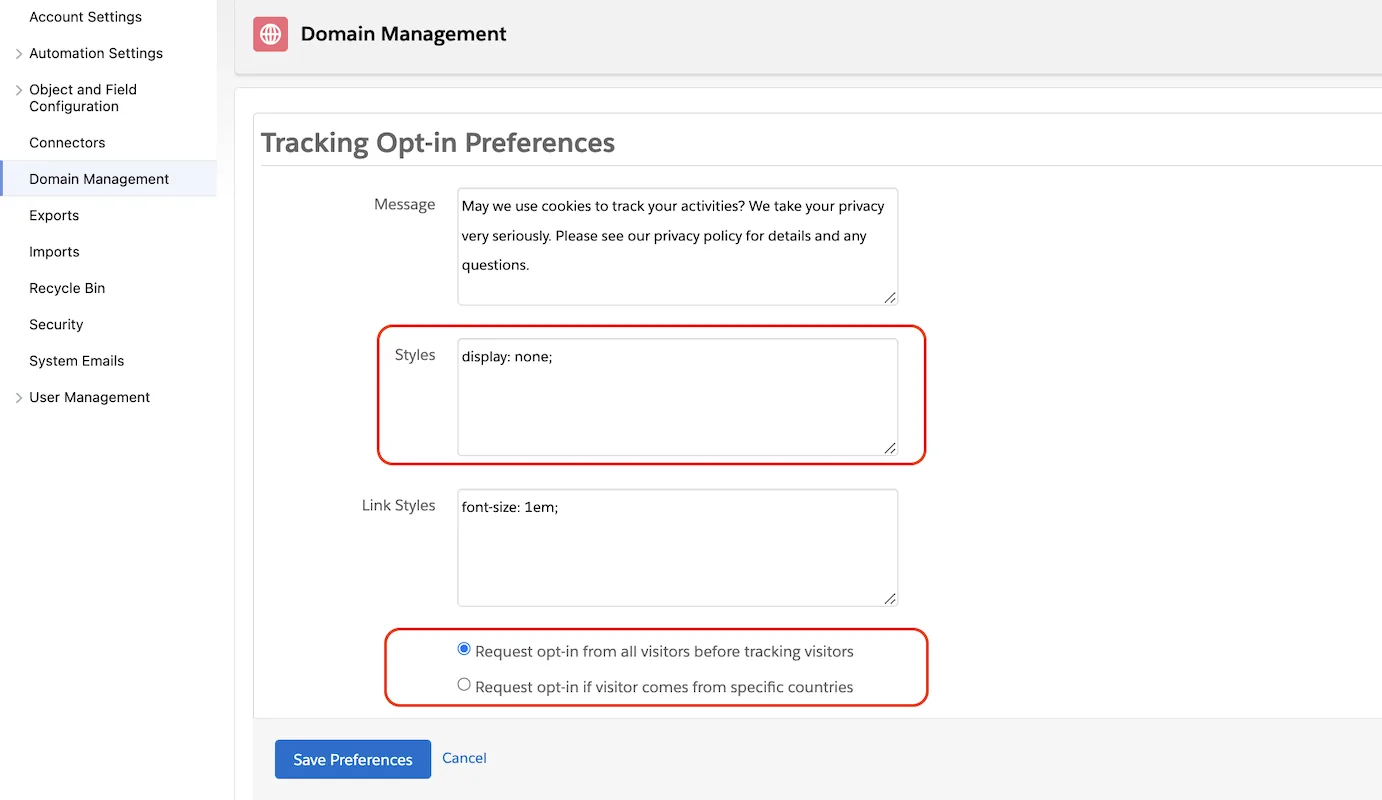
Open Account Engagement Settings → Domain Management and click Edit Tracking Opt-In Preferences. Salesforce describes every option in its article on tracking opt-in preferences.
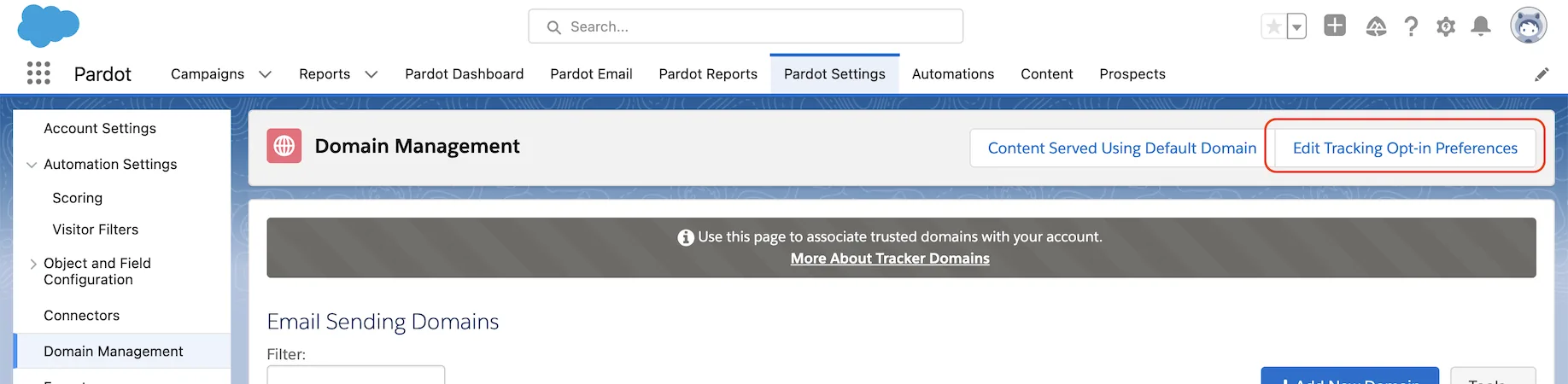
Here you edit the message and style of Pardot's built-in consent banner and choose how opt-in works. You can request opt-in from all visitors before tracking them, or only from visitors in specific countries. The exact labels can differ slightly between Pardot versions.
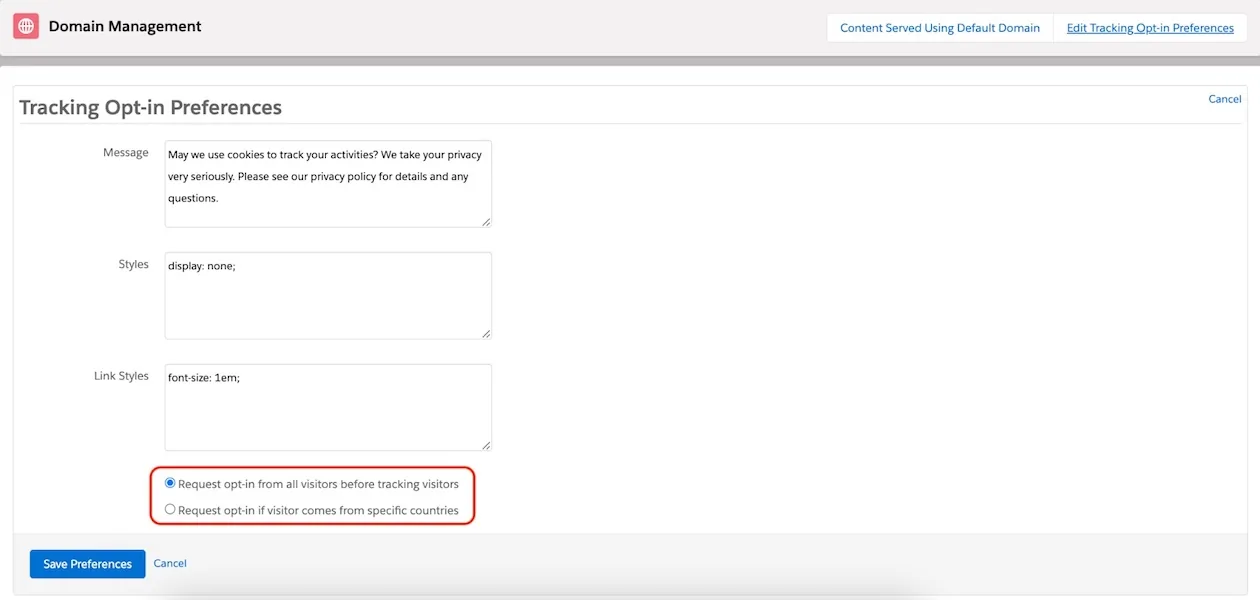
That leaves three practical setups. Pick the one that fits your website.
Setup A: Track Without Asking
Choose "Request opt-in if visitor comes from specific countries" and select no countries. This switches the opt-in banner off. Pardot sets its cookies as soon as the tracking code loads and tracks every visitor. If the code loads on every page view, that happens whatever they choose in your consent banner. If you do select countries, visitors from those countries are asked first.
In the browser, the Pardot cookies appear straight away:

You get complete tracking data. You also set cookies before consent, and that is the point your data protection officer needs to assess.
Setup B: Pardot's Built-In Banner
Choose "Request opt-in from all visitors before tracking visitors". New visitors see Pardot's banner on every page with the tracking code, and nothing is tracked until they agree. Business units created after 13 February 2023 start with tracking opt-in switched on.
Many websites already run a consent banner tool such as Cookiebot, Usercentrics or OneTrust, so visitors would answer two banners. And without the Tracking & Consent API, visitors can't change their answer in Pardot's banner later unless they clear their cookies.
Setup C: Your Consent Banner Decides
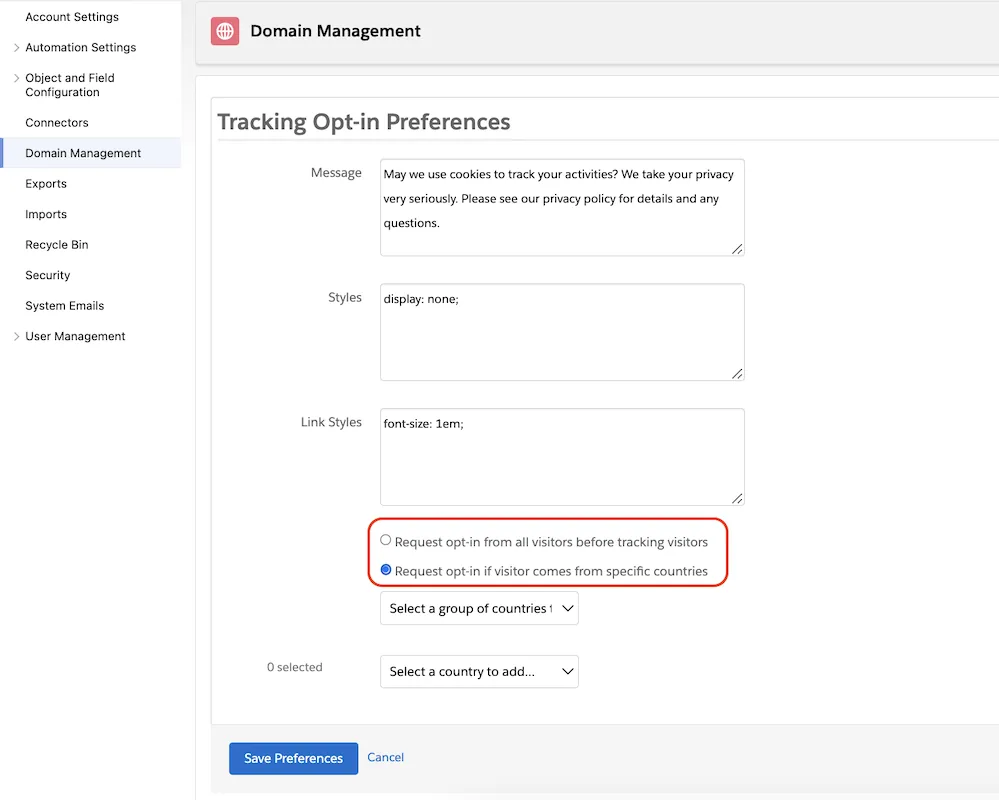
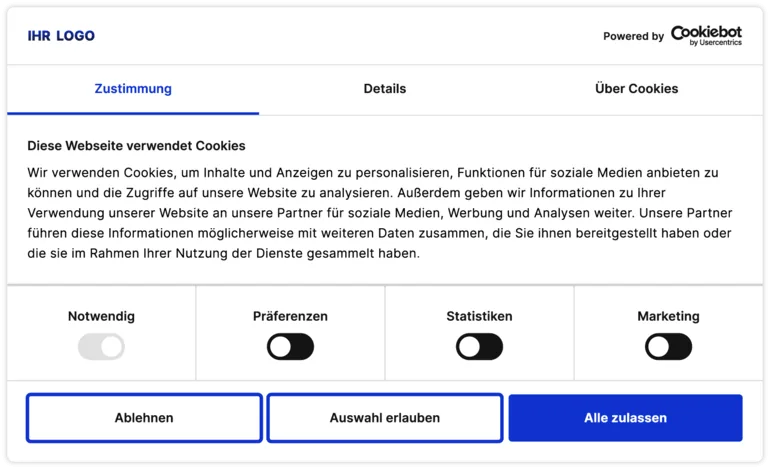
If your website uses a consent banner tool, this is the setup Salesforce documents for it. Your banner asks once, and Pardot sets its cookies only when the visitor agrees.
- Keep "Request opt-in from all visitors before tracking visitors" selected.
- Hide Pardot's built-in banner, for example with
display: none;in the Styles field of the opt-in preferences. Do the next steps right away: with the banner hidden and no API, Pardot tracks nobody. - Turn on the API under Account Engagement Settings → Edit → "Activate the Tracking & Consent JavaScript API". This needs the Administrator role.
- Replace the standard tracking code with the API snippet. It loads
pdt.jsfrom your tracker domain, which must be a verified tracker domain and a subdomain of the tracked site. - In your banner tool's consent callback, pass the visitor's choice with
pdt('setOptIn', true)orpdt('setOptIn', false), then send the page view withpdt('sendPageView'). Without opt-in, no page view is sent. - When a visitor withdraws consent later in your banner, call
pdt('revokeConsent'). It deletes the visitor cookies and sets opt-in to false.
Before consent, the browser shows no Pardot cookies:

The API also covers what Pardot's banner can't. showConsentBanner reopens the choice, revokeConsent deletes the visitor cookies and sets opt-in to false, and getConsentStatus reads the current state. Salesforce's own troubleshooting article sends customers with a third-party cookie tool to this API. The functions are described in the Tracking & Consent API help article and the developer guide it links to.
Older guides describe a workaround with Google Tag Manager, a GET request and a "third-party opt-in management" feature that Support switched on. Salesforce doesn't document it, so we wouldn't build on it today.
Our Recommendation
Use a consent management platform, such as Cookiebot, and connect it to Pardot through the Tracking & Consent API, passing the visitor's choice with pdt('setOptIn', ...) as Salesforce documents it. Visitors answer one banner, their choice applies to Pardot as well as your other tools, and, if your banner passes changes on to the API, they can change it later. Setup A tracks more visitors, but it sets cookies before anyone agreed. Setup B asks for consent, but it puts a second banner next to the one your website already has.
Don't want to set this up yourself? If you need help connecting your consent tool to Pardot, our Pardot GDPR setup does exactly that: we connect the tracking code to your consent tool and help you reflect it in your privacy policy.
First Clicks From Emails and Links
Since Summer '23, Pardot doesn't set tracking cookies on the first click on an email link, custom redirect or social post. With Retroactive First-Touch Tracking, which is on by default, that first touch is credited once the visitor consents. You can switch it off in Account Engagement Settings.
The Pardot Cookies at a Glance
These are the cookies Pardot can set, as listed in Salesforce's article Cookies and Activity Tracking. The number in each name is your business unit ID (older documentation calls it the account ID). List them in your consent banner tool and your cookie policy.
| Cookie | What it does |
|---|---|
visitor_id<ID> | Stores the unique visitor ID, so the visitor is tracked in the right business unit. Set by the tracking code. |
visitor_id<ID>-hash | Stores a unique hash value. A security measure so nobody can pose as a visitor and get at prospect data. |
pi_opt_in<ID> | Stores the visitor's tracking choice (true or false) when opt-in is on. With false, the visitor cookie is disabled and the visitor isn't tracked. |
lpv<ID> | Stops repeated views of the same page within 30 minutes from counting as several page views. |
pardot | Session cookie that marks an active session on forms, landing pages and pages with the tracking code. Not used for tracking. |
The maximum cookie duration from step 4 applies to visitor_id and pi_opt_in.
Step 3: Switch to First-Party Tracking
First-Party and Third-Party Cookies
A cookie is a small text file that a website stores in the visitor's browser. A first-party cookie belongs to the domain the visitor is on. A third-party cookie belongs to another domain, which lets it follow people across websites. That is why browsers block third-party cookies more and more.
With third-party tracking, Pardot sets its cookie from a Pardot domain, so on your website it counts as third-party and many browsers block it. Visitor tracking and page actions become unreliable as a result. First-party tracking sets the cookie from your tracker domain, which is a subdomain of your own site. Third-party tracking is still available, but Salesforce recommends the switch. With first-party tracking on, Pardot can still set third-party cookies alongside for redundancy if you allow them.
What Changes With First-Party Tracking
- There is no tracking across root domains. If someone visits brandA.com and brandB.com, Pardot creates two visitor records. If the person converts on both sites with the same email address, for example through a form, both visitor records are usually linked to that prospect. Salesforce doesn't document this in detail, so check it in a test. Plan for this in campaigns that span several domains.
- Tracking across subdomains of the same root domain works, except when the browser blocks third-party cookies. In that case progressive profiling and prefill don't work across subdomains either.
- The default domain go.pardot.com isn't used with first-party tracking.
- If you tracked before, remove the old third-party (campaign) tracking code everywhere and add the new code from the Tracking Code Generator.
- Embedded and iframed forms don't create a visitor cookie when someone views them, and they don't record a form view on the first visit to a domain. Use a Pardot landing page or a form handler instead. If that isn't possible, send visitors to the page through a custom redirect, which Salesforce suggests so the cookie exists before the page loads. On a visitor's very first click on a custom redirect, though, no cookie is set (see First Clicks From Emails and Links in step 2).
- Changing an asset's tracker domain later resets its cookies, and visitor data doesn't carry over unless third-party cookies are on. Salesforce advises against changing tracker domains.
Turn It On
Business units created after 13 February 2023 already use first-party tracking. In older ones, open Account Engagement Settings and click Edit (classic: gear icon → Settings → Edit).

Tick "Enable first-party tracking". If your website already used Pardot tracking, also tick "Enable third-party cookies" for the transition, so existing visitors stay connected. A new business unit, or one that never tracked, needs first-party tracking only. Then check that every tracker domain has a default campaign: Domain Management → edit the domain → choose the campaign → Update Tracker Domain.
Older guides show three options at this point. Current business units show these two checkboxes. Salesforce's article on enabling first-party tracking has the full steps.
Step 4: Set the Cookie Duration
In the same Edit view, "Max Tracking Cookie Duration (days)" sets how long the visitor_id and pi_opt_in cookies last. You can choose anything from 180 to 3,650 days, and the default is 365. Business units that never changed the setting may still show 3,650 days (10 years). Existing cookies take the new duration on the visitor's next visit to a tracked page.
There's no single right number. A shorter duration keeps less data and makes more returning visitors look new. Agree the value with your data protection officer and use the same one in your cookie policy.
Step 5: Place the Tracking Code
By now your tracker domains are validated, the opt-in preferences are chosen and first-party tracking is on. If you use the Tracking & Consent API (setup C), its pdt.js snippet replaces the code from this step. For setups A and B, open Account Engagement Settings → Domain Management and scroll to the Tracking Code Generator.
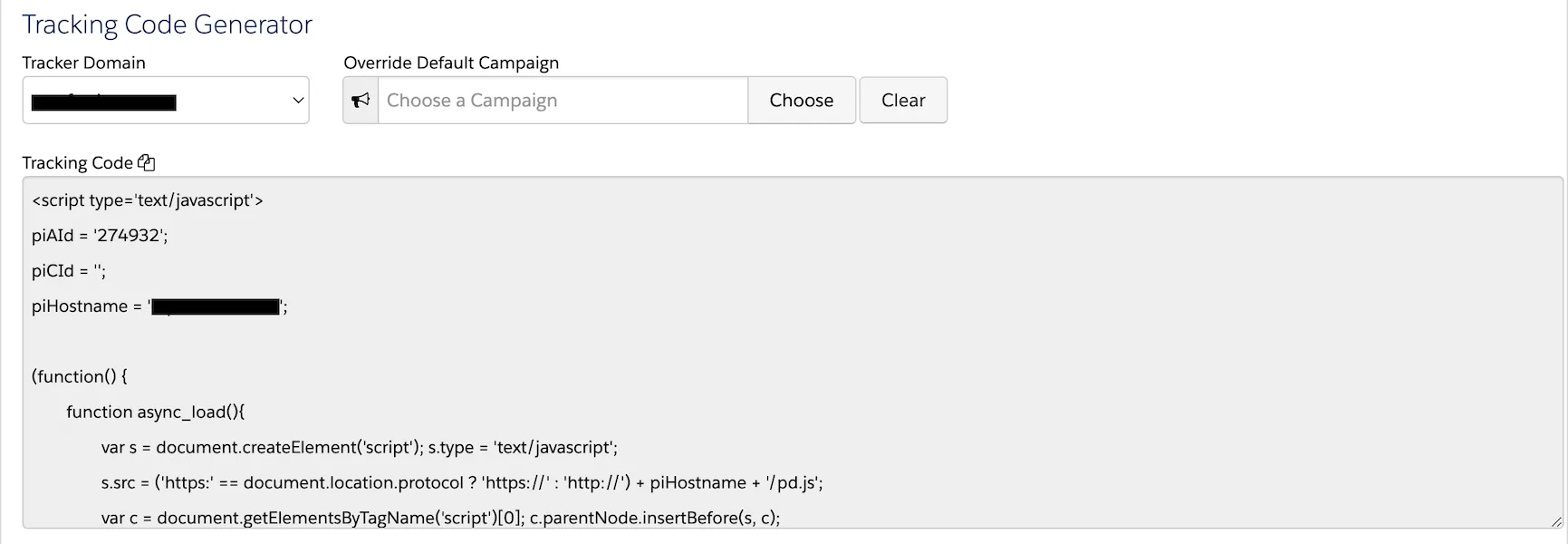
Select the tracker domain and copy its code. Each tracker domain has its own. Leave "Override Default Campaign" empty for the general code. An override only makes sense for pages whose traffic belongs to one specific campaign, and it creates a separate code that you then maintain on those pages. Campaign IDs in the code are obscured, so don't edit them by hand.
Where the code goes has changed. Salesforce now recommends placing it on high-value pages only, such as landing pages or specific product pages, and not on general pages like the home page. Badly placed tracking code is one cause of bot-like activity, and Pardot pauses prospects above 1,000 visitor records, 5,000 activities or 5,000 page views.
Pardot landing pages don't need the code. Choose the tracker domain when you create the landing page, and Pardot handles tracking within your opt-in preferences. In setup C, Pardot's banner is hidden on landing pages too, so add your consent banner to the landing page layout template and test that tracking starts there after consent.
Directly in the Page
Send the code to the person who maintains your website and ask them to place it just before the closing </body> tag on the pages you chose.
Through Google Tag Manager
Salesforce's support article on Google Tag Manager still asks for one change before the code goes into a Custom HTML tag. Replace the block if(window.attachEvent) { ... } else { ... } with async_load(); and make sure no other condition wraps the async_load call. Do this for every tracking code you add through Tag Manager.
Copy the code from the Tracking Code Generator rather than from an old sample. Its hostname is your tracker domain, so a snippet that points to pi.pardot.com is outdated. Put the code in Tag Manager only and not in the page as well, or visits count twice. Salesforce Support doesn't troubleshoot this setup. The API snippet from setup C needs no edit, because it already loads asynchronously.
Step 6: Test Tracking and Cookies
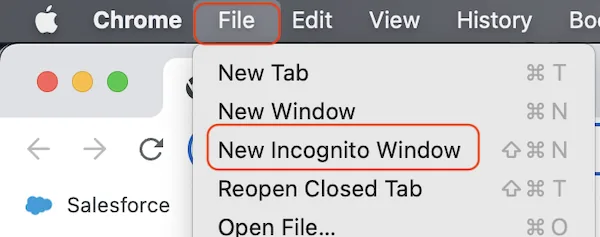
Test in a private window so that older cookies don't distort the result. In Chrome, open File → New Incognito Window.
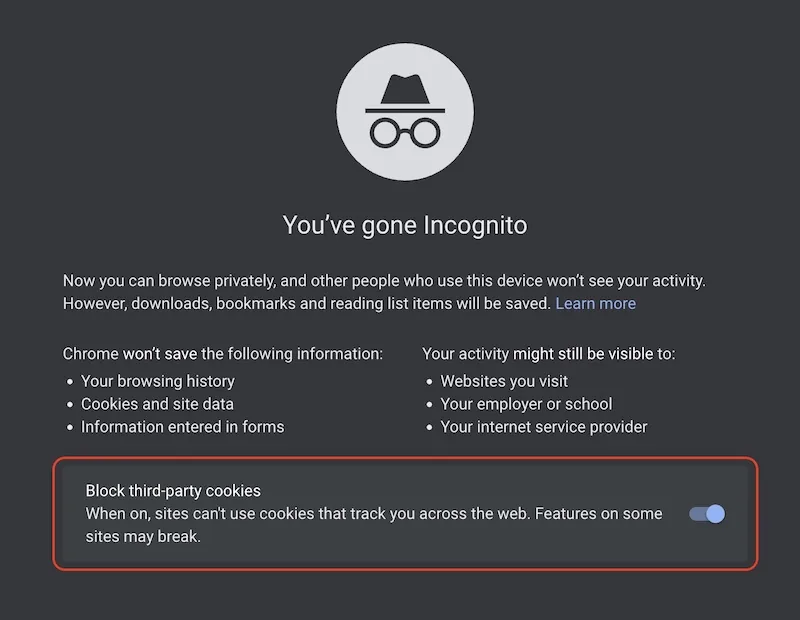
Make sure third-party cookies are blocked, which is the default in Chrome's Incognito mode. That way you see whether first-party tracking works on its own.
Is the Code on the Page?
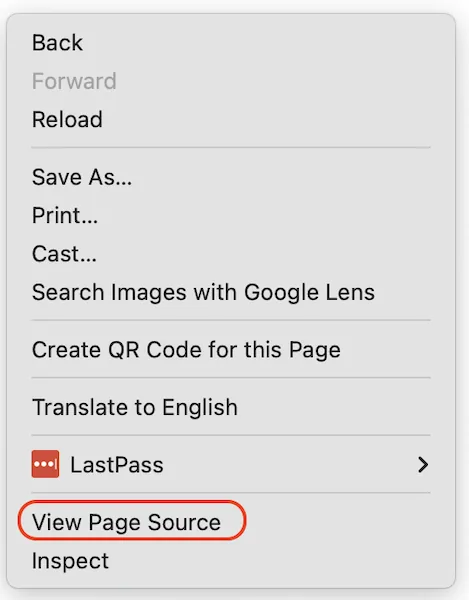
Open a page with the tracking code, right-click an empty spot (not an image or link) and choose View Page Source.
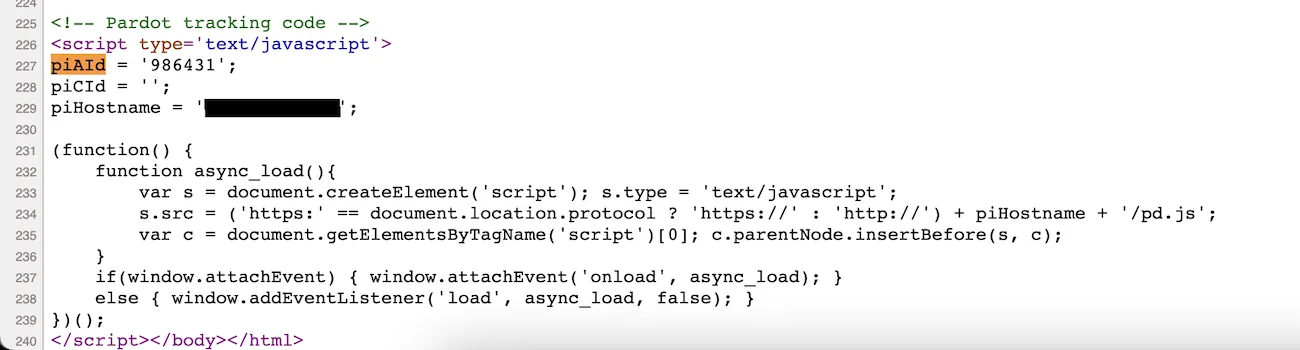
Search for piAId with Ctrl+F on Windows or Cmd+F on macOS. With the API snippet, search for pdt.js instead.
If the code comes through Google Tag Manager, the page source won't show it. Check the Elements tab in the developer tools, or look in the Network tab for a request to your tracker domain. If you still can't find it, ask your website admin.
Are the Cookies Set?
What you should see depends on step 2. In setups B and C there are no Pardot cookies before consent; in setup A they appear right away. Right-click the page and choose Inspect.
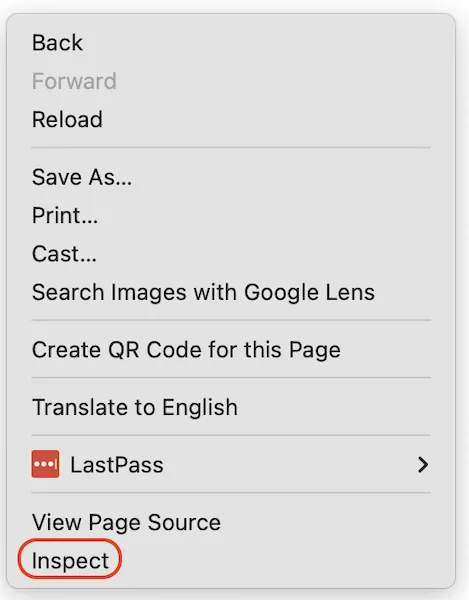
Open Application → Cookies and select the domain that runs the tracking code. Without Pardot cookies the list looks like this. Other cookies that don't belong to Pardot may still appear.

With Pardot cookies, you see visitor_id, visitor_id-hash and lpv, each followed by your business unit ID:

In setup C, accept in your banner and reload: the cookies should appear. Reject or withdraw consent, and they should be gone.
Does Pardot Record the Visit?
Open Prospects → Visitors. The Visitors report has views for identified, active and all visitors, plus graphs for page views and new visitors in the last 24 hours. Your test visit should show up there when cookies were set, and not when they weren't. To find your own visit quickly, Salesforce suggests pasting your IP address into Pardot's search.
For a complete check, submit a form on a tracked page in the private window, using a test email address. Open the new prospect and filter Prospect Activities by Website. Your page views should be listed.
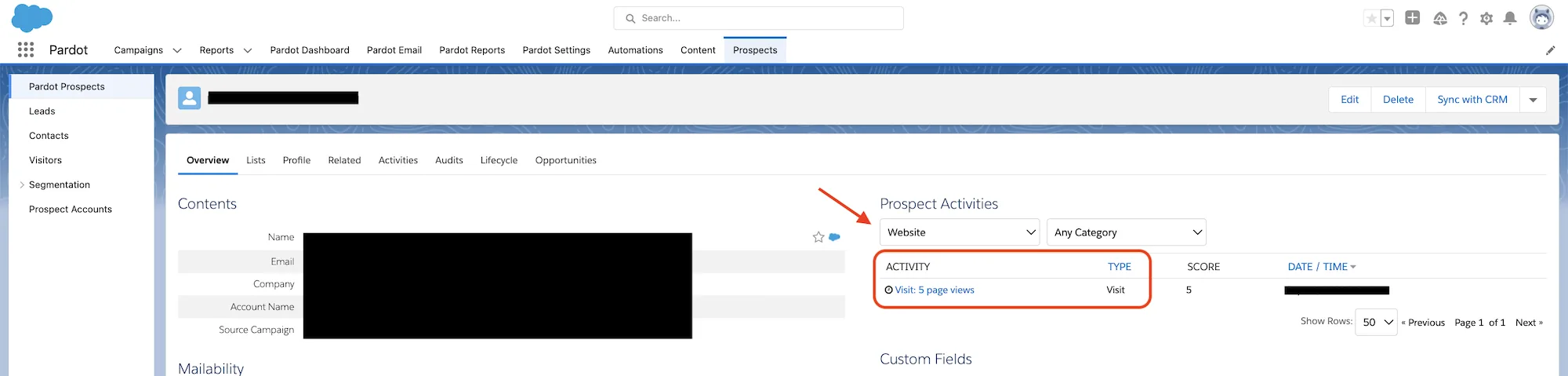
The form submission always shows. The page views before it only show if tracking was allowed.
Two Settings for Keeping Less Data
Automatic deletion of unconverted visitors. With the Visitor Importance Time Frame and the option to delete visitor records that didn't convert to prospects, Pardot removes anonymous visitors after a set time. In business units created on or after 16 October 2023 this is on with 365 days. You can set 6 months to 3 years, and the deletion is permanent.
Honor Do Not Track (DNT) Header. When this is on, Pardot doesn't track page views, form and landing page views, file downloads or custom redirect clicks from browsers that send the Do Not Track signal. It is off by default.
To see where your business unit stands on these and other points, start with a Pardot audit.
Frequently Asked Questions
Does Pardot work with a consent banner tool like Cookiebot or OneTrust?
Yes, through the Tracking & Consent API. Your banner passes the visitor's choice with pdt('setOptIn', ...), and Pardot sets its cookies only after consent. Without the API, Pardot doesn't see what visitors choose in your banner. Its cookies are then either set for everyone or only after Pardot's own banner.
Are the Pardot visitor cookies anonymous?
Salesforce says the cookie stores a unique identifier and no personal details. A unique ID can still count as an online identifier, and storing a cookie in the browser can need consent regardless. Your data protection officer should make that call.
Why not use Pardot's built-in consent banner?
You can, and it appears on every page with the tracking code. Most websites already have a consent banner tool, though, so visitors would see two banners. Without the API, visitors also can't change their answer later unless they clear their cookies.
Which cookie duration should we choose?
There is no general recommendation. You can set 180 to 3,650 days, and the default is 365. Agree the value with your data protection officer.
When should we override the default campaign?
Rarely. Only for pages whose traffic belongs to one specific campaign. Each override creates its own tracking code, which you then have to keep up to date on those pages.
Should we use first-party or third-party tracking?
First-party. New business units have it on by default. If you tracked before, keep third-party cookies on alongside it during the transition, so existing visitors stay connected.
Does first-party tracking work across domains?
No. Each root domain creates its own visitor record. That is how first-party cookies work in general: each cookie belongs to one domain.
Does one person count as two visitors on two domains?
Yes, one per root domain. If the person converts on both domains with the same email address, for example through a form, both visitor records are usually linked to that prospect. Check it in a test.
Does the consent banner tool still control the other cookies on Pardot landing pages?
Only if its script is part of your landing page layout template. Then it handles Google Analytics and other cookies there as it does on your website. Pardot's own cookies follow your opt-in preferences or the Tracking & Consent API.
Can you set this up for us?
Yes. We have done Pardot consulting since 2018, in more than 50 projects. Our recommendation stays the one from step 2: a consent tool such as Cookiebot, connected to Pardot through the Tracking & Consent API. Get in touch and tell us how your website and consent banner are set up today.