How to Set Up Pardot Engagement History Dashboards
How to set up Engagement History Dashboards so sales sees Pardot campaign engagement in Salesforce, which editions you need, and what to check when they’re empty.

Engagement History Dashboards show engagement data from Marketing Cloud Account Engagement (Pardot) right on your Salesforce campaign, lead or opportunity records. This article shows how to set them up across your org, and why that helps sales and marketing work together.
Seeing how campaigns perform is key to a well-run B2B funnel, yet many marketing teams struggle to get Pardot engagement data into the CRM. For Salesforce users, these dashboards are a lightweight, accessible way to do it.
- Engagement History Dashboards show in Salesforce how prospects interact with a campaign’s emails, landing pages, forms and files.
- They need the Account Engagement Lightning app and the Growth, Plus, Advanced or Premium edition.
- Turn them on in Salesforce Setup under Engagement History; the first data can take a while to show up.
- Beyond campaigns, you can add them to accounts, opportunities, leads and contacts.
- Dashboards empty? Check that Connected Campaigns are enabled and configured correctly.
What Are Engagement History Dashboards?
Engagement History Dashboards are out-of-the-box Salesforce analytics components that visualize how prospects interact with Pardot marketing assets-emails, landing pages, forms, files-linked to a specific campaign. These prebuilt dashboards provide a slice of B2B Marketing Analytics, offering visual insights directly on Salesforce records.
They can be added to the following objects:
- Salesforce Campaigns
- Accounts
- Opportunities
- Leads, Contacts, and Person Accounts
This means your marketing performance data is never more than a scroll away for sales, marketing, or service teams across the entire organization.
Prerequisites Before You Get Started
Before you add Engagement History Dashboards, make sure your org meets the following criteria:
- You’re using the Pardot (Account Engagement) Lightning app. These dashboards are Lightning-only.
- Your Pardot edition must be Growth, Plus, Advanced, or Premium. These dashboards aren’t available in older editions like Standard, Pro, or Ultimate.
- You have a limited number of Analytics View Only Embedded App permission licenses, depending on your edition.
Step-by-Step Setup: Engagement History Dashboards
Step 1: Enable Engagement History Dashboards in Setup
To activate Engagement History Dashboards:
- Go to Salesforce Setup.
- Search for “Engagement History” (under the Account Engagement section).
- Find the switch labeled Enable Embedded Engagement History Dashboards and toggle it on.
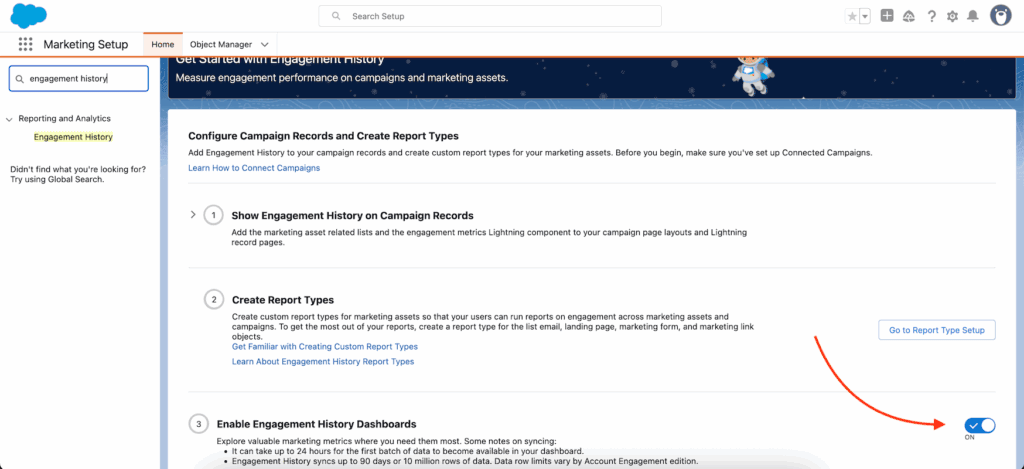
Note: It can take up to 24 hours for dashboard data to begin populating.
Step 2: Add the Dashboard to Your Campaign Pages
Engagement History Dashboards are added as Lightning Components. This means you’ll need to edit the Lightning Record Page, not just the page layout.
- Navigate to any Salesforce Campaign record.
- Click the cogwheel icon, then choose Edit Page.
- Click anywhere on the main section of the page to open the sidebar.
- Select Add Tab, choose Custom, and label it “Reporting” or something meaningful.
- From the left-hand component panel, search for and drag the Engagement History Dashboard component into the new tab.
- Save your changes.
Step 3: Assign the Correct Permissions
Next, ensure only licensed users can view the dashboards:
- Assign the Analytics View Only Embedded App permission set license to each user needing access.
- This includes viewing dashboards on Campaigns, Accounts, Opportunities, and People records.
If your org doesn’t yet have the “Analytics Cloud Integration User” and “Analytics Cloud Security User” system users, they’ll appear once the feature is activated-but provisioning may still take up to 24 hours.
Step 4: View and Interact with Campaign Engagement Data
Once enabled and configured, the dashboard should begin to populate. This can take some time-up to a full day-as Pardot processes engagement data.
The dashboard includes filters that allow you to segment the data by:
- Activity Date (e.g. Last 30 days, This Fiscal Quarter)
- Asset Type (e.g. Email, Landing Page, File)
- Activity Type (e.g. Email Click, Form Submission)
You can also exclude certain metrics-like email opens-to avoid inflating results with low-intent engagement.
Below the visualization, a detailed activity table shows individual prospect interactions with specific assets. This gives both marketing and sales clarity on who’s engaging-and how.
Extending Dashboards to Accounts and Opportunities
Beyond Campaigns, you can embed Engagement History Dashboards on:
- Accounts – View cumulative activity across all contacts at the account level.
- Opportunities – See marketing touches connected to opportunity contact roles or others linked to the account.
- Leads/Contacts/Person Accounts – Gain insight into 1:1 engagement at the person level.
Repeat the same steps covered earlier:
- Edit the Lightning Record Page for the object.
- Add a custom tab (optional).
- Drag the Engagement History Dashboard component onto the page.
- Assign user permissions as needed.
Benefits for Your Revenue Team
Enabling Engagement History Dashboards is one of the simplest ways to bring your marketing data into the hands of sales, customer success, and leadership. Key benefits include:
- Shared visibility across teams – unify campaign reporting inside Salesforce.
- Time efficiency – no need to switch between Pardot and Salesforce to see engagement data.
- Faster follow-up – sales gets immediate context on prospect interest across multiple assets.
- Analytics without eagle-eyed report building – leverage Salesforce’s out-of-the-box visualizations.
Common Challenges and Troubleshooting Tips
While setup is generally straightforward, users may experience common issues like empty dashboards or component load errors. Here are a few things to check:
- Verify that Connected Campaigns are enabled and configured correctly.
- Ensure that assets you expect to see (emails, landing pages) are indeed associated with Campaigns.
- Confirm that your Pardot edition matches the required tiers (Growth or higher).
- Make sure users have been assigned the Analytics View Only Embedded App license.
If all else fails, log a case with Salesforce Support and reference the Engagement History feature.
Engagement Dashboards in Action: A 15-Minute Win
In 15 minutes you can get a dynamic view of how your Pardot assets perform, shared across teams. It’s one of the fastest ways to bring marketing and sales closer together and to put data right next to the decisions that drive revenue.
If you don’t use these dashboards yet, now is a good time to review your setup and bring your campaign insights into Salesforce.
Need help getting your dashboards running, or going beyond the basics? Get in touch with our team and we’ll make your campaign reporting something you can act on.