


For marketing teams using Account Engagement (Pardot), keeping campaign content consistent, accurate, and up to date can be a real challenge – especially in large organizations. That’s where Snippets come in. These reusable content blocks empower you to manage commonly used copy or links from one central place, then reference them across multiple assets.
In this guide, we’ll explore what Pardot Snippets are, how to set them up, where they shine, and how to use automation to make them even more powerful.
What Are Pardot Snippets?
Snippets are reusable text components that can be assigned to Salesforce Campaigns and referenced in Pardot email templates, landing pages, forms, and more. They’re especially useful when you have messaging that needs frequent updates or is shared across multiple assets – like event dates, registration links, promo codes, or fundraising updates.
Unlike Advanced Dynamic Content, Snippets are available on all Account Engagement editions and can be updated centrally, which makes them an efficient way to ensure messaging consistency across teams.
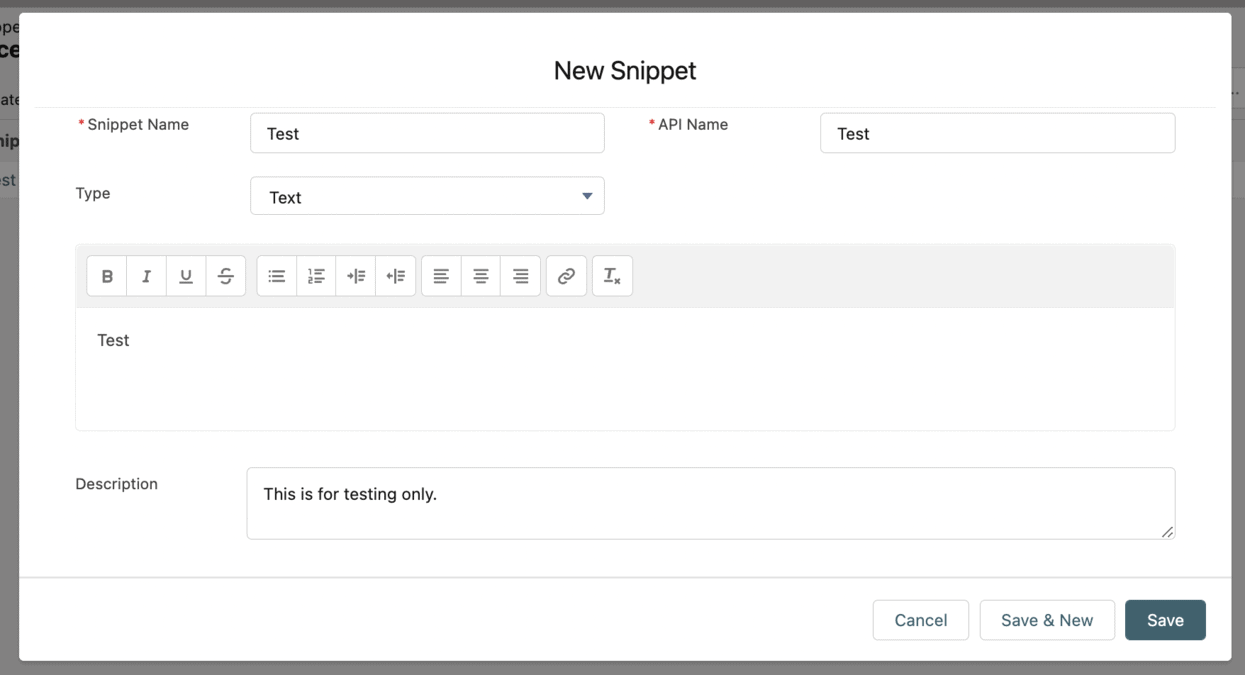
When Should You Use Snippets?
Snippets are ideal for:
- Recurring communications that require refreshed data (e.g., webinar dates or event links)
- Campaigns involving multiple departments or business units
- Fundraising initiatives where totals change regularly
- Highlighting newly released content like videos or whitepapers
Because Snippets are Salesforce objects, they can also be updated automatically using Salesforce Flow – allowing you to programmatically maintain accurate marketing content without manual intervention.
Real-World Use Case: Automating Snippet Updates with Flow
Suppose your SaaS company promotes seasonal discounts in Pardot emails and landing pages. Rather than manually swapping out the discount details each time, you can automate it with Flow and Snippets.
Step-by-Step Automation Example
In this scenario, we want to populate a Snippet with the current active promotion:
- Trigger the Flow when a Campaign record is created or updated.
- Filter the Campaigns by type = “Promotion” and start date in the future.
- Get the relevant Snippet (e.g., “Next Promo Banner”).
- Update the Snippet with the Campaign’s discount details (e.g., “20% Off All Plans Until September 30”).
If you’re dealing with a high volume of Campaigns, consider adding a decision element to compare if the new date is different from what’s already stored in the Snippet – helping reduce unnecessary updates.
This approach works well even if you don’t have a dedicated Account Engagement Sandbox because Snippets are native Salesforce objects. You can test the Flow logic in a standard Salesforce Sandbox environment.
Snippets and the Lightning Email Builder
Currently, Snippets don’t integrate directly into the Lightning Email Builder the same way they do in the Classic Builder. That means you can’t simply pick them from the merge field list in Lightning.
Workaround: Use Classic Builder to Generate Merge Fields
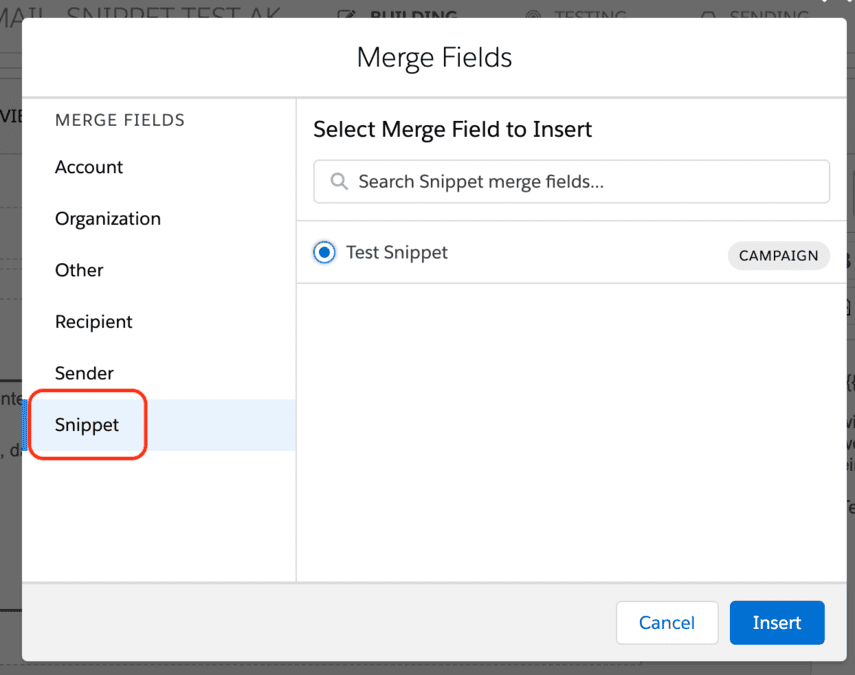
Here’s a practical workaround:
- Create or open an email in the Classic Email Builder.
- Select your Snippet using the merge field picker.
- Copy the generated merge field.
- Paste it into your Lightning Email Builder content.
While this method requires some manual effort, maintaining a central document or even a custom Salesforce record with your Snippet names and merge fields can save time in the long run.
How to Set Up Pardot Snippets
Before you can start using Snippets, make sure you meet these prerequisites:
- Pardot Lightning App: You’ll need to be using the Lightning UI.
- Connected Campaigns: Ensure cross-system Campaign alignment.
- HML (Handlebars Merge Language): Snippets use HML for merge field syntax.
Step 1: Add the Snippet Assignment to Campaign Layouts
To link Snippets to specific Campaigns, go to Salesforce Setup and search for “Campaigns” in Object Manager. Edit the desired Page Layout and drag the “Snippet Assignment” related list onto it.
Step 2: Grant Users Access to the Snippets Tab
Snippets are managed from the “Snippets” tab in the Pardot Lightning App. To expose this tab:
- Navigate to Salesforce Setup → Profiles.
- Under “Tab Settings”, ensure Snippets are set to “Default On”.
- Check Object Settings to assign create, read, edit, delete (CRED) permissions as required.
If you need a scalable approach, consider creating a dedicated Permission Set for Snippet access. For improved navigation, customize the Pardot Lightning App menu via the Lightning App Builder to highlight the Snippets tab more prominently.

Using Snippets Across Campaigns and Teams
Large teams can especially benefit from the content consistency that Snippets offer. Central or global marketing teams can update Snippets once, and those changes reflect instantly in all connected Campaign email templates – reducing the risk of outdated or conflicting information reaching prospects.
Some key advantages include:
- Time savings from fewer manual edits across assets
- Greater consistency in messaging and CTAs
- Easier governance and change control through central management
Summary
Snippets may not match the full flexibility of Advanced Dynamic Content, but for standardized, repeatable copy that needs occasional updates, they are remarkably effective. When combined with Salesforce automation tools like Flow, they become even more powerful – bridging the gap between real-time business data and your marketing communications.
Ready to bring more efficiency and precision to your Pardot strategy? Get in touch with us to explore how we can help you put Snippets and automation to their best use.